How to edit TikTok videos in 2026: a step-by-step guide
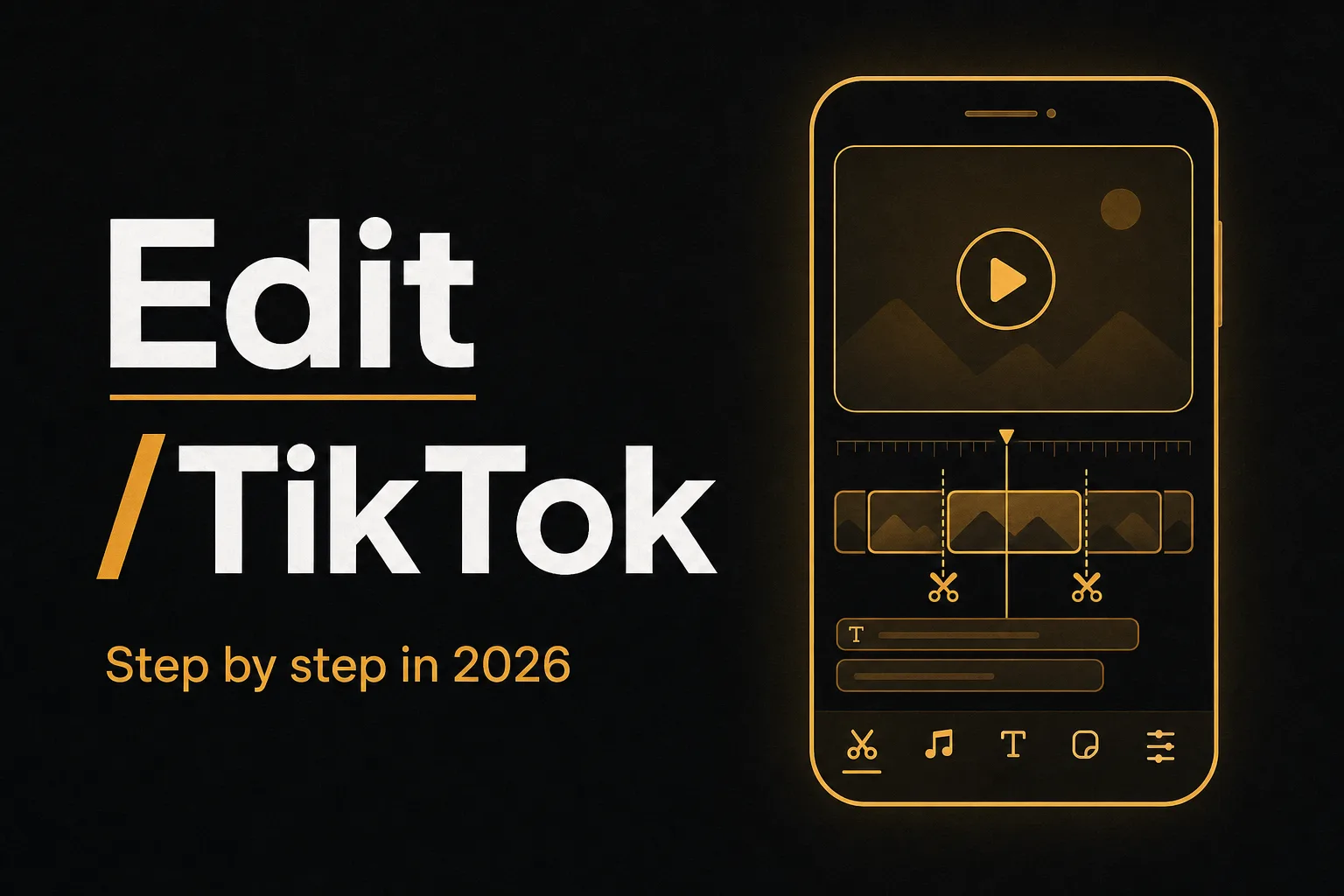
Good TikTok edits are not luck. The clips that hold attention all share the same backbone: a strong hook, tight cuts, readable captions, and audio that matches a trend. You can build that inside the TikTok app, in a dedicated editor, or with AI that does most of the heavy lifting for you. This guide walks through all three paths, then gives you a repeatable editing checklist you can use on every video.
By the end you will know how to trim and cut clips, write a hook that stops the scroll, add captions and subtitles, layer trending sounds, apply effects without overdoing them, and use an AI fast path to turn one long video into several TikTok-ready shorts.
In-app editing vs dedicated tools vs AI

Before the steps, pick your lane. Each one fits a different goal.
| Approach | Best for | Trade-off |
|---|---|---|
| TikTok in-app editor | Quick edits, native effects, trending sounds, posting fast | Limited fine control, harder to redo timing after recording |
| Dedicated editor (mobile or desktop) | Precise cuts, multi-track audio, polished captions, brand looks | Steeper learning curve, export and re-upload steps |
| AI tools like Vuela | Auto captions, turning long videos into shorts, cloning viral formats at scale | You still review and tweak the output |
Most creators mix all three. They cut and caption in a dedicated tool or with AI, then add the final trending sound and native effects inside TikTok so the algorithm recognizes them. That last point matters: sounds and effects added natively are easier for users to reuse, which helps reach.
How to edit TikTok videos step by step
Follow these steps in order. They work whether you film selfie-style, screen-record, or stitch existing footage.
- Plan the structure before you film. Decide the type of video first: a transition, a talking clip, a tutorial, or a list. Knowing the format tells you how many segments you need and where the cuts land. A 20 second clip usually needs 4 to 8 segments to feel alive.
- Open the editor and import your footage. Tap the plus button, then Upload to pull clips from your camera roll, or record directly. You can select multiple clips at once and reorder them on the timeline.
- Lead with a hook in the first second. The opening frame decides whether people stay. Start mid-action, ask a sharp question, or show the end result first. Cut any slow intro. If your best moment is at second 12, move part of it to the start.
- Trim and cut each clip tight. Drag the handles to shave dead air at the start and end of every segment. Remove pauses, ums, and filler. Tight pacing is the single biggest difference between amateur and pro edits.
- Add jump cuts to keep energy high. A jump cut removes a small chunk of footage so the action skips forward. For talking videos, cut on every breath or sentence break. This compresses time and hides mistakes. Aim for a new visual beat every 2 to 4 seconds.
- Layer a trending or fitting sound. Tap the music note to browse sounds. Pick something currently trending in your niche, or one that matches the mood. Use the wave bar to trim the audio so the beat drop lands on your strongest cut. Keep original voice audio if you are talking.
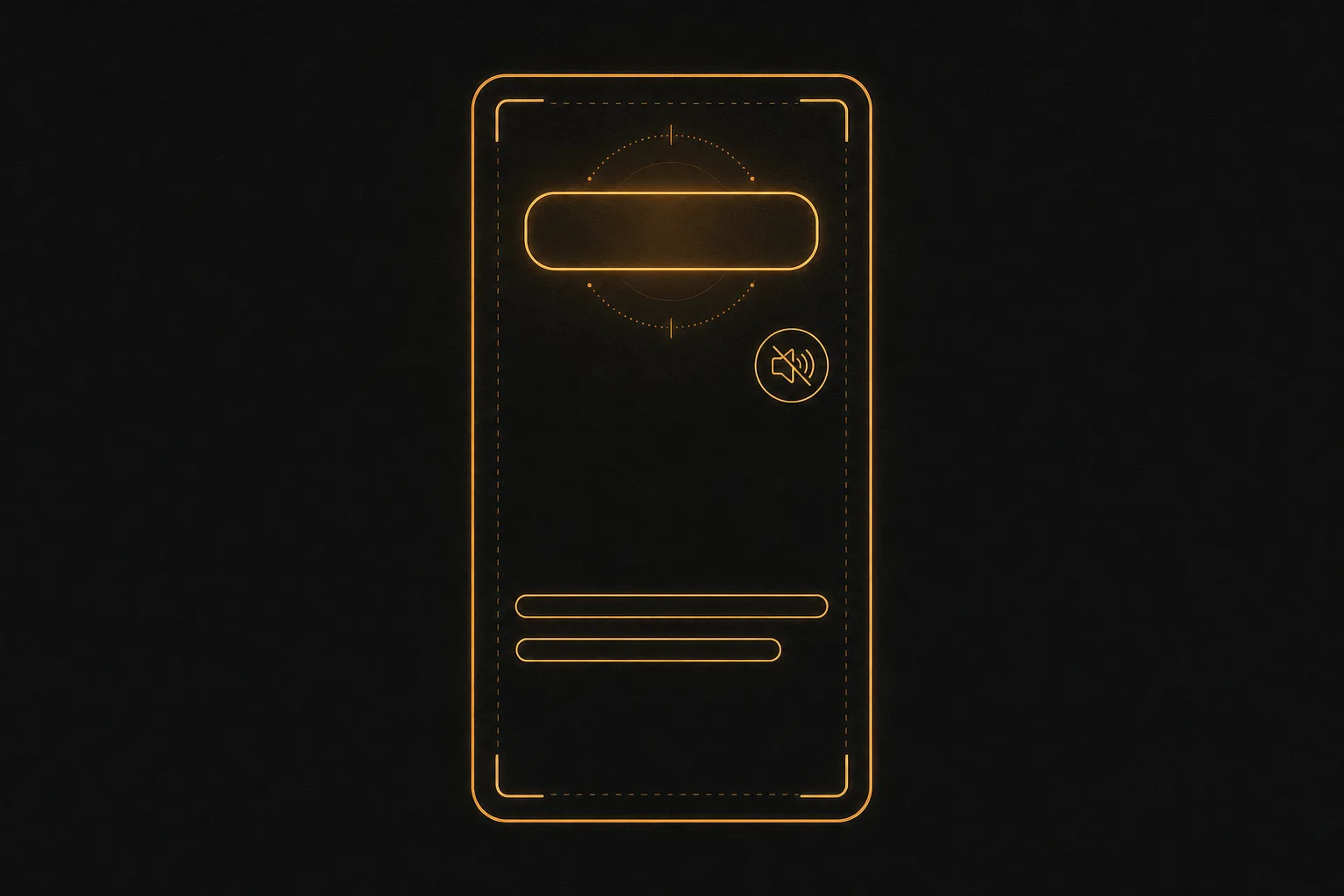
- Add captions and subtitles. Most TikTok views happen with sound off, so on-screen text is not optional. Turn on auto captions for spoken words, then proofread them. Add separate large text for the hook and key points. Keep text in the center safe zone so the username, caption, and buttons do not cover it.
- Apply effects and transitions sparingly. One clean transition between scenes beats five flashy ones. Use zoom, shake, or a simple cut on the beat. Color filters can unify a video, but keep skin tones natural. Restraint reads as professional.
- Add a voiceover if needed. For tutorials or faceless videos, record a voiceover over your clips. Speak clearly, then trim silences. Match the voiceover pacing to your cuts so words and visuals stay in sync.
- Review on a phone before posting. Watch the full clip on a phone screen, sound off first, then on. Check that captions are readable, the hook lands, and nothing drags. Fix the slow parts. Then export at the highest quality and post.
How to write a hook that stops the scroll
The hook is the first one to three seconds. If it fails, nothing else matters. Strong hooks usually fit one of these patterns:
- The result first: show the finished outfit, the before and after, or the payoff, then explain how you got there.
- The bold claim: open with a statement people want to argue with or confirm.
- The open loop: tease an answer you reveal later, so viewers stay to find out.
- The pattern interrupt: an unexpected action or visual in frame one.
Put a text hook on screen at the same time, in big readable type. Reading and hearing the same promise doubles the chance someone stays.
How to add captions and subtitles the right way
Captions help reach, accessibility, and watch time. Two types matter:
- Subtitles: a running transcript of what you say, synced word by word. Auto-generate them, then fix any wrong words. Auto captions miss names, slang, and numbers, so always proofread.
- Emphasis text: larger callouts for the hook, steps, or key terms. Use these to guide the eye and break up the video.
Keep font size large, use a high-contrast color or background, and keep lines short. Two lines max on screen at once. Avoid placing text in the bottom right where the buttons sit.
The AI fast path: edit TikTok videos faster with Vuela
Manual editing works, but it is slow when you post often. AI tools handle the repetitive parts so you spend time on ideas, not timelines. Vuela is an all-in-one platform built for exactly this kind of short-form work. Here is where it fits into the editing flow.
- Auto captions: upload your clip and Vuela transcribes the speech and burns in synced subtitles. You review the text and adjust placement, instead of typing every line by hand.
- Turn long videos into shorts: feed in a long video, a webinar, a podcast, or a stream, and Vuela cuts it into vertical TikTok-ready shorts automatically. This is the fastest way to get a week of posts from one recording.
- Clone viral formats: the viral video cloner reproduces a winning format with your own product or message, so you can ride a proven structure instead of guessing.
- Translation and dubbing: turn one video into many languages with natural matching voices, which opens new audiences without re-filming.
- Voiceover and music: generate a voiceover with text-to-speech or clone a voice, and add AI-generated background music when a trending sound does not fit.
Vuela also covers AI video generation from text, an image, or an existing video, UGC-style ads with AI presenters, talking avatars, plus AI image generation and editing for thumbnails and product shots. Plans are flat-rate from $9 a month, so the cost does not scale per seat or per export. The practical workflow: draft the cut and captions in Vuela, then add the final trending sound and any native effect inside TikTok before you publish.
Free and paid tools beyond the TikTok app
If you prefer a manual editor, several tools are popular with creators. Limits below were checked in 2026 and change often, so confirm current terms before you commit.
- CapCut: the most common mobile and desktop editor for TikTok, with templates, auto captions, and effects. Has a usable free tier with some watermarked or gated features.
- Canva: a browser-based editor with TikTok templates and simple drag-and-drop edits. Offers a free tier; some assets and features are paid.
- Adobe Premiere and After Effects: desktop tools for advanced edits, smooth transitions, and motion graphics. Paid, with a steeper learning curve, used by editors chasing the high-end look.
- Splice and similar mobile editors: lightweight apps for quick cuts and audio sync on the phone.
For most creators, native TikTok editing plus one capable tool covers everything. Add AI when volume becomes the bottleneck.
A quick editing checklist for every video
Run through this before you hit post:
- Does the first second hook the viewer with action, a claim, or a question?
- Is there a text hook on screen in the opening frame?
- Are all clips trimmed tight with no dead air?
- Is there a visual change every 2 to 4 seconds?
- Are captions accurate, large, and inside the safe zone?
- Does the sound match the mood or a current trend, with the beat on a cut?
- Is there one effect or transition style, not five?
- Did you watch it once with sound off and once with sound on?
Frequently asked questions
How do I edit TikTok videos for free?
The TikTok app itself is free and covers trimming, sounds, text, captions, effects, and filters. For more control without paying, CapCut and Canva both offer free tiers, though some features may be gated or add a watermark. Check current limits, since they change. Paid tools like Vuela add AI auto captions and long-to-short conversion, with flat-rate plans from $9 a month.
How do I make my TikTok edits look professional?
Three things do most of the work: a strong hook in the first second, tight cuts that remove every pause, and clean readable captions. Add one consistent transition style and a sound where the beat lands on a cut. Avoid stacking many effects. Restraint and pacing read as professional more than flashy transitions do.
Can I turn a long video into TikTok shorts automatically?
Yes. AI tools handle this. Vuela takes a long video, podcast, or stream and cuts it into vertical TikTok-ready shorts automatically, then adds synced captions. You review the clips and tweak them, which is far faster than editing each short by hand.
How do I add subtitles to a TikTok video?
Inside TikTok, turn on captions in the editing screen and the app transcribes your speech, then you fix any wrong words. For cleaner results across many videos, an AI tool like Vuela auto-generates synced subtitles you can restyle and reposition. Always proofread auto captions, since they miss names, numbers, and slang.
What makes a TikTok hook work?
A good hook promises a payoff fast. Show the result first, make a bold claim, open a loop you close later, or interrupt the pattern with something unexpected. Pair it with on-screen text so people who scroll with sound off still get the promise. If the first second is slow, viewers leave before the rest matters.